
This guide will show you how to archive old emails by exporting them as an Outlook Data File (.pst). This process will free up space in your Outlook online storage mailbox.
Classic Outlook
1. Create a folder first by right-clicking your email address, (ie.2025 Archive)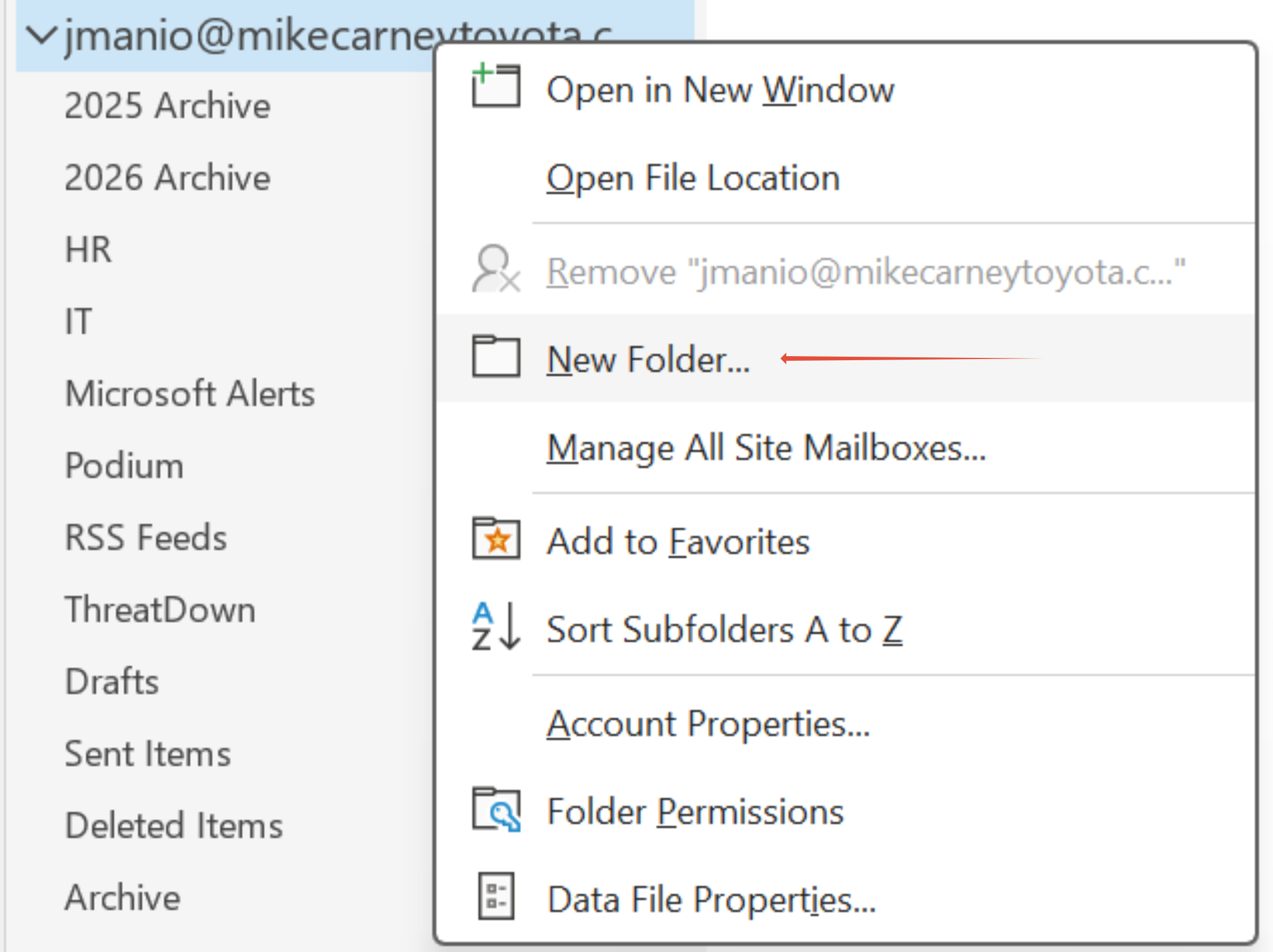
2. Search for "Rules" in the search box, then select "Manage Rules & Alerts.."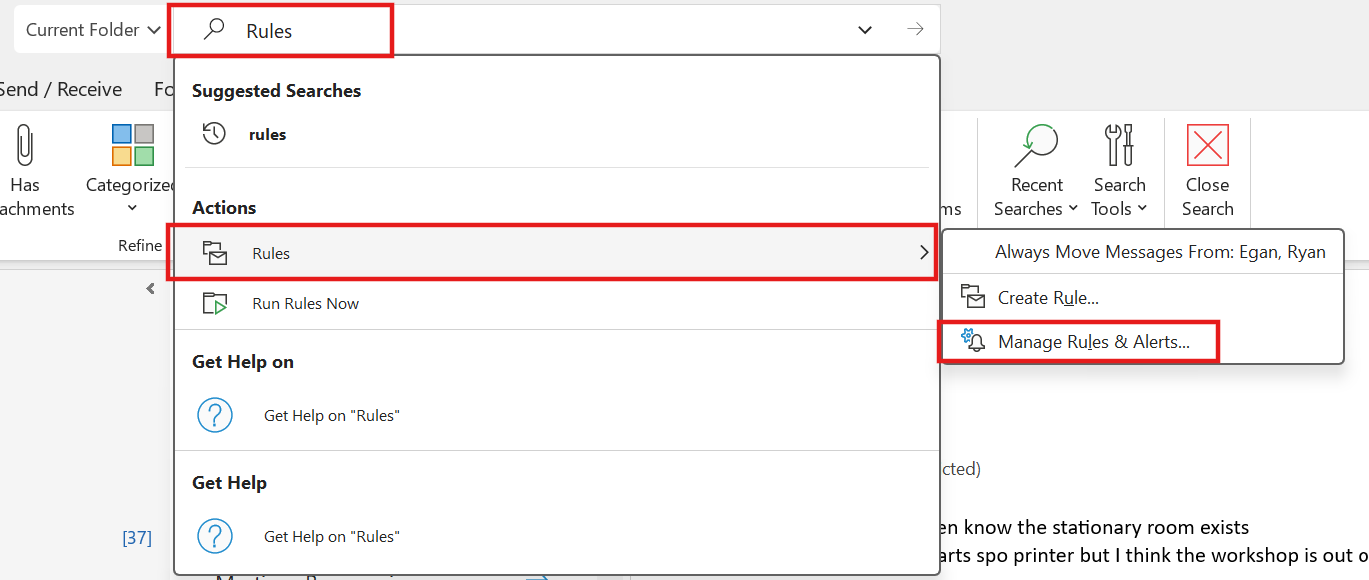
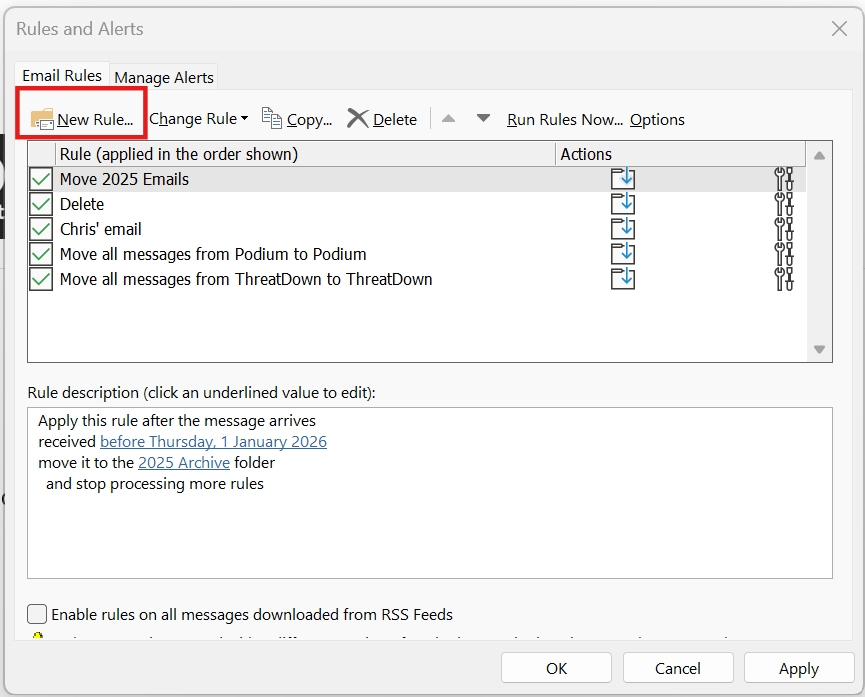
3. Create a new rule. On this part a rule wizard will guide you on what kind of rule you want to setup.
A. If you want to apply this new rule to all the messages/email that you received. Click Next. 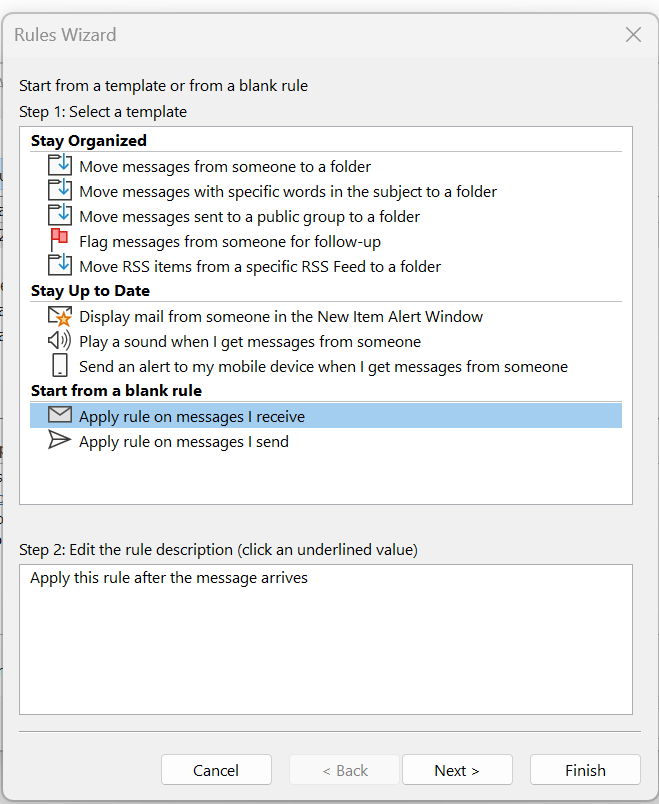
4. Check the box for "Received in a specific date span," then click the underlined text link that reads "in a specific date span." Select your desired date range. For example, to capture all emails from 2024 through 2025, set the criteria to After: 31 December 2023 and Before: 1 January 2026.
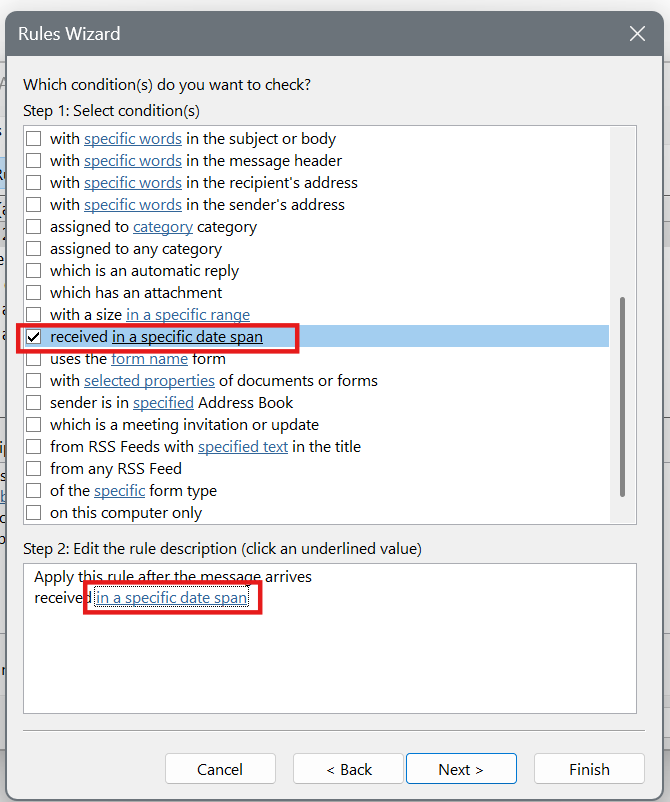
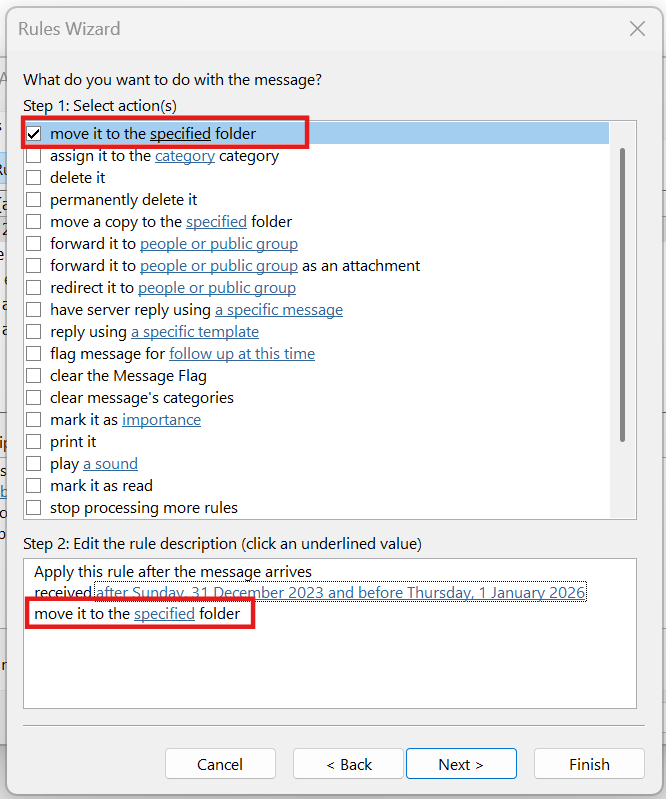
5. Click "Next," then check the box for "Move it to the specified folder." Click the underlined word "specified" to select the destination folder for these emails. For this example, select "2024 Archive" (or the specific folder name you created earlier).
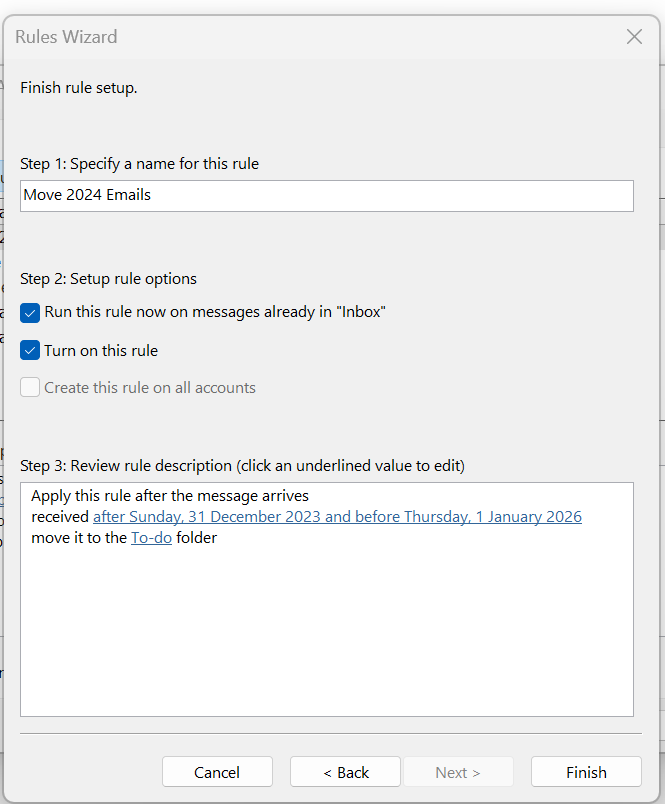
6. Click "Next" until you get this pop-up box. Rename the rule, then select "Finish"
7. Now you have to "RUN" the rule manually.
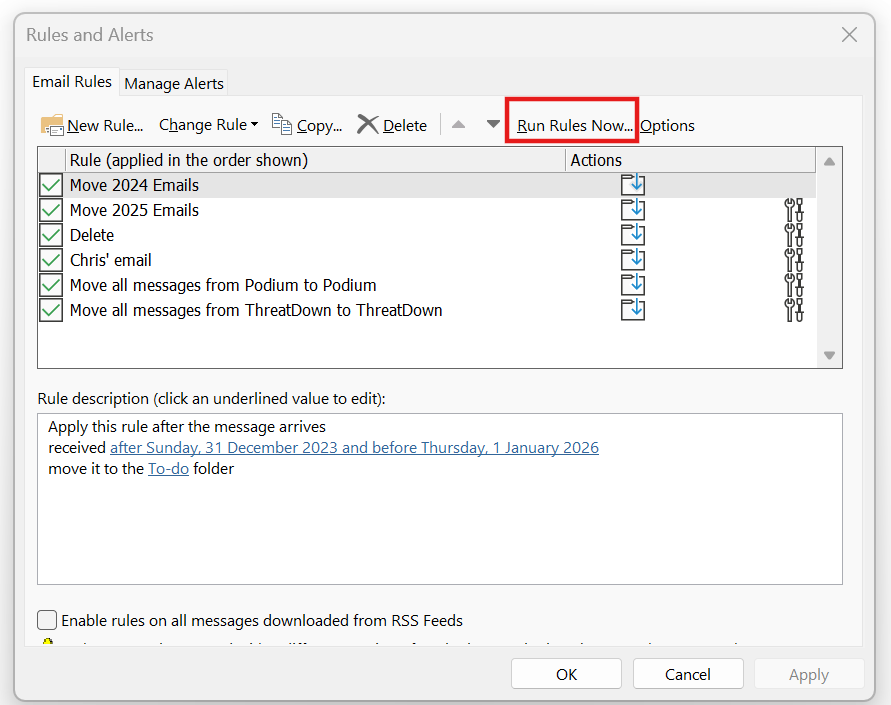
8. Tick the newly created rule, browse which folder you want to apply this rule. Click "Run". (This may take a minute or more, depends how much email in the folder).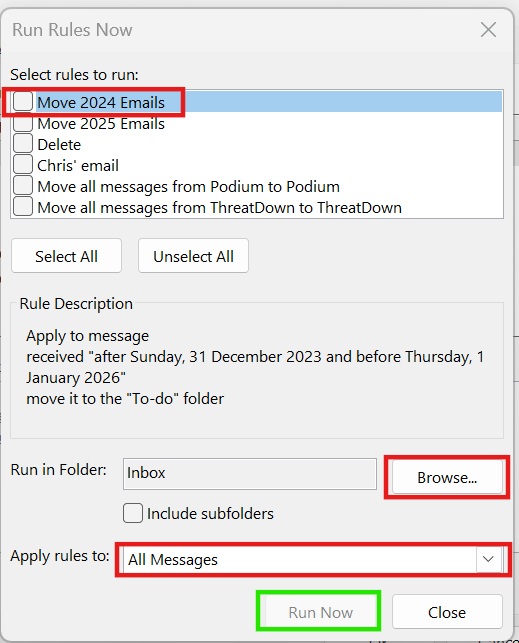
9. Now all the emails has been sorted by year in a folder. We can now archive that folder. Now go to File > Open & Export > Import/Export. You will get a pop-up window:
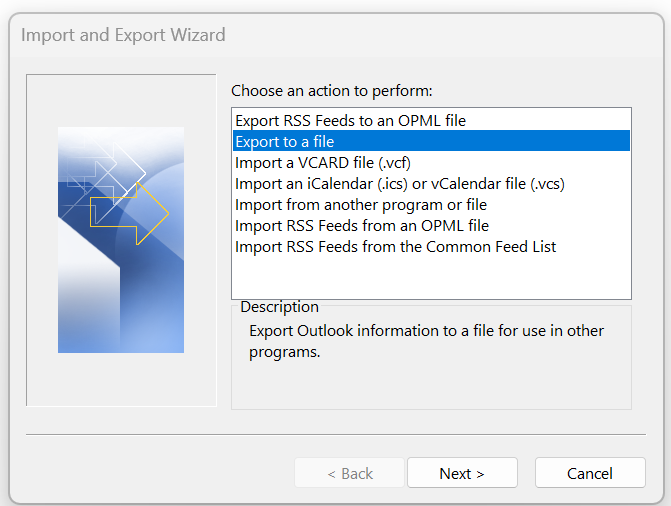
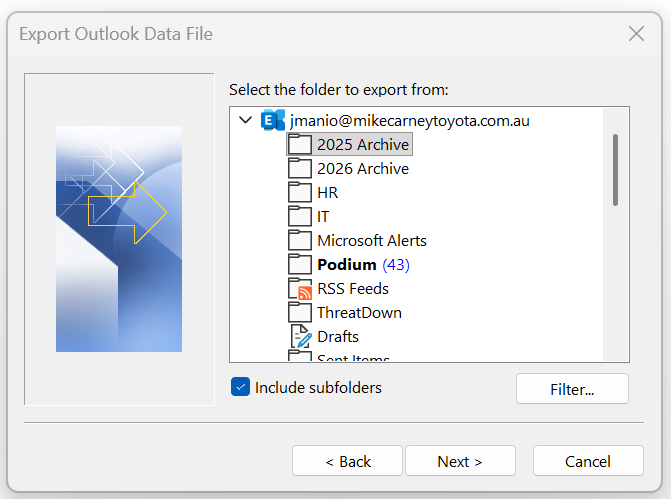
Choose "Export to a file" then choose "Outlook Data File (.pst)". Choose which folder you want to archive.
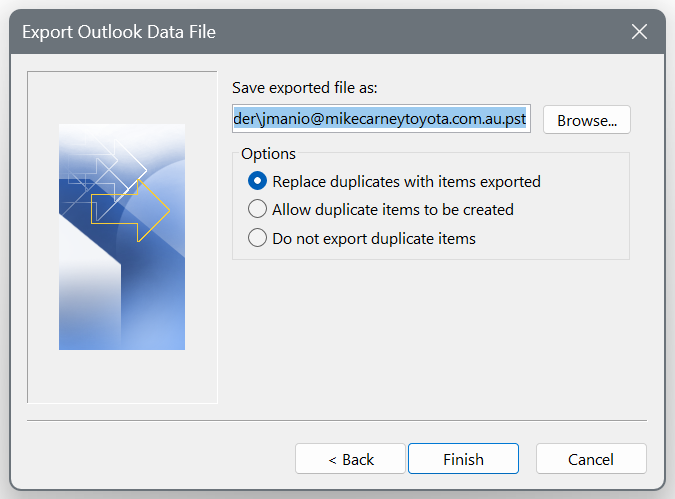
Browse through the location where you want to save your Outlook data file. Then click "Finish". You will be prompted to add a password but, this is optional.
- Replace duplicates with items exported: Best for a fresh backup. It overwrites older versions of items with the most recent version from your live inbox.
- Allow duplicate items to be created: Best if you do not want to lose anything. It keeps both the old and new versions of an item, though it can clutter your file.
- Do not export duplicate items: Best for saving time and storage space. It skips copying any item that already exists exactly as-is in the backup file.
10. Now you can safely delete all the emails in that folder now and it should give you more storage space.