This guide will show you how to log in separately to Toyota Source and Lexus Source to access its different SAP location.
Please ensure you use a different browser than your usual one for each SOURCE (e.g., Firefox, Chrome, or Brave).
***NOTE: Please make sure use the correct login credential for each SOURCE.***
Source Link
Support:
jmanio@mikecarneytoyota.com.au
EXT: 07 4759 4233
Log in to SOURCE
1. Copy and paste the SOURCE you need to access into your browser (please see above). This will take you to the initial Microsoft login screen.
Login
Email: firstname.lastname@ext.toyota.com.au
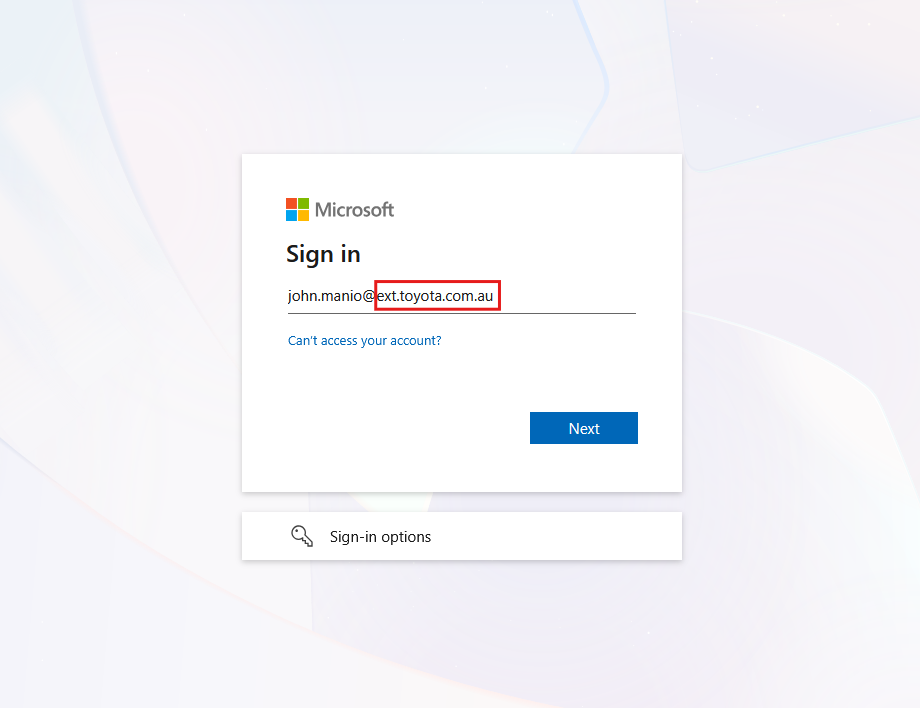
2. Once you click "Next" it will take you to the next login screen.
Login
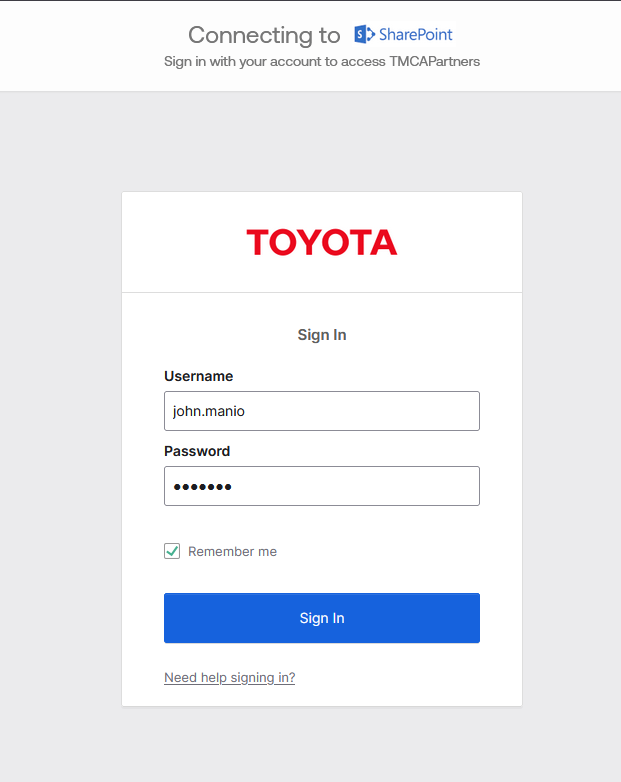
Username: firstname.lastname
Password: Your TUNE password or check for an email we sent you
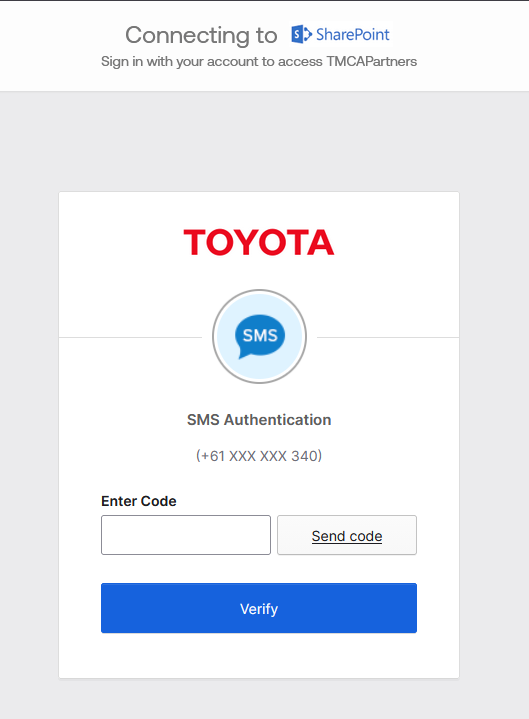
Then "Sign In", this will take you to the AUTHENTICATION page which you need to authenticate.
3. Authenticate by sending a code to your phone. (Make sure to press "Send code")
4. Once you have successfully authenticated, the Toyota or Charters or Lexus Source page will be displayed. From there, locate the SAP S/4 tile.
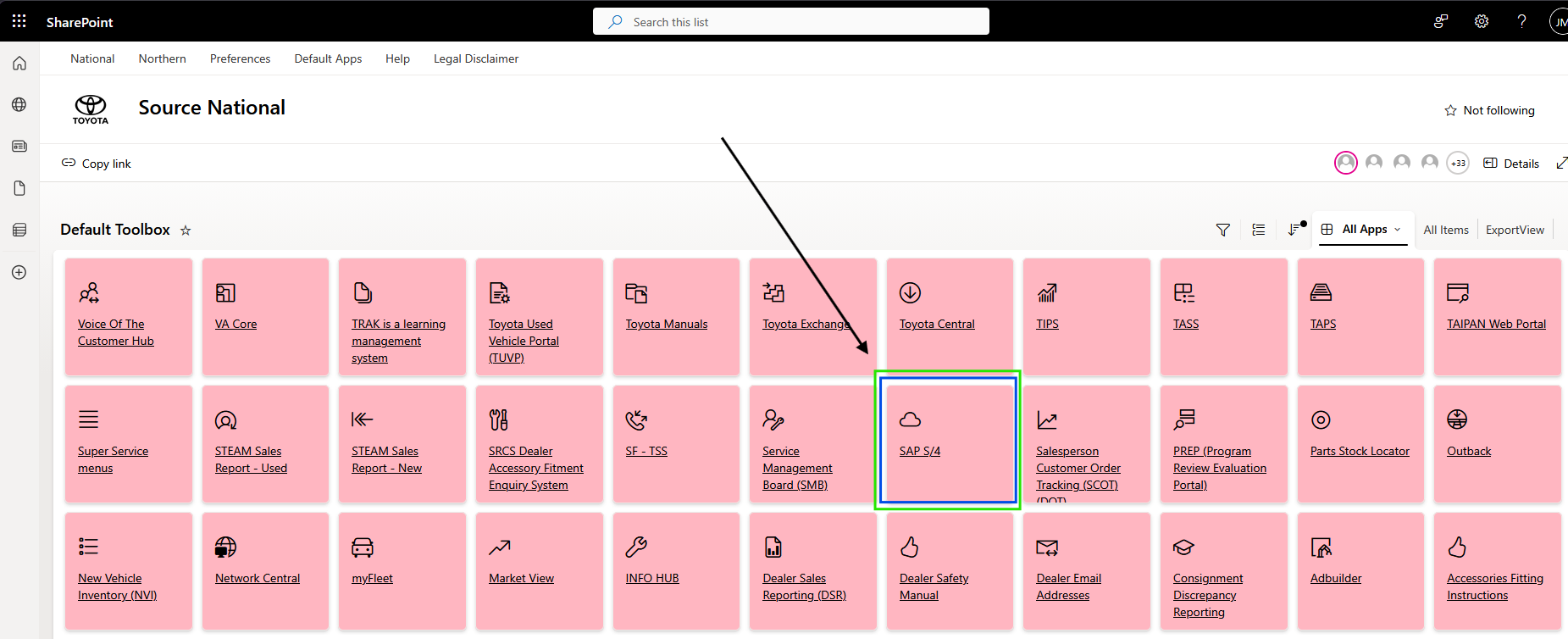
5. Once choose the SAP S/4 tile, it will take you again to another login page.
Login
Email: firstname.lastname@ext.toyota.com.au
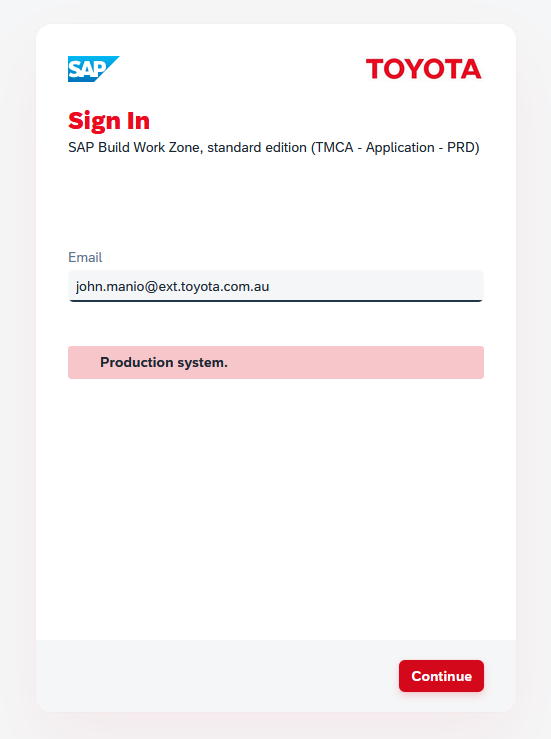
Once you click "Continue" it will take you now to SAP landing page.