Contact Support:
Support@mikecarneygroup.freshdesk.com
T: 0747594233 – John Manio
Search for "MyRedmap" app in the search bar.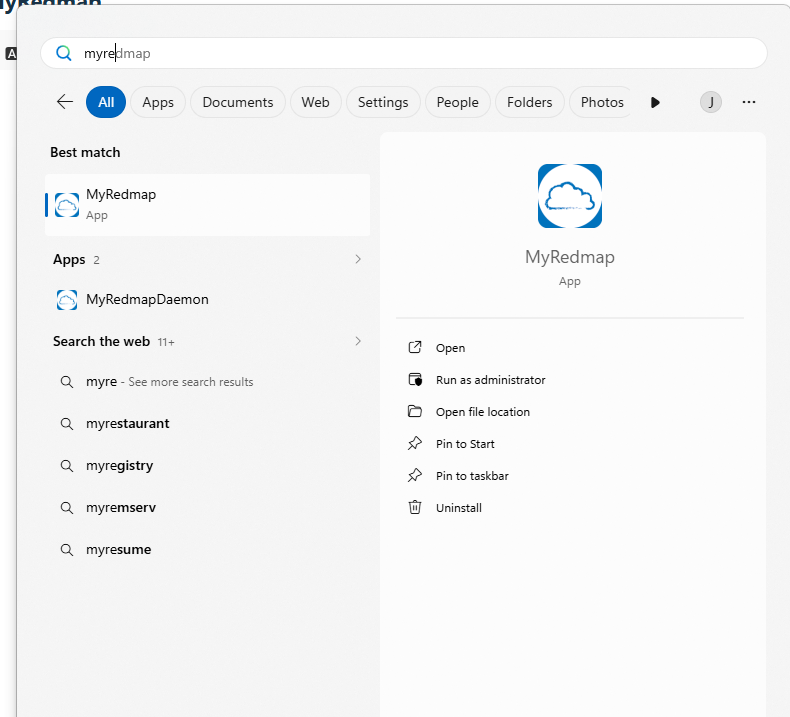
Select "Profile" and it will show a pop-up window where you can configure it.
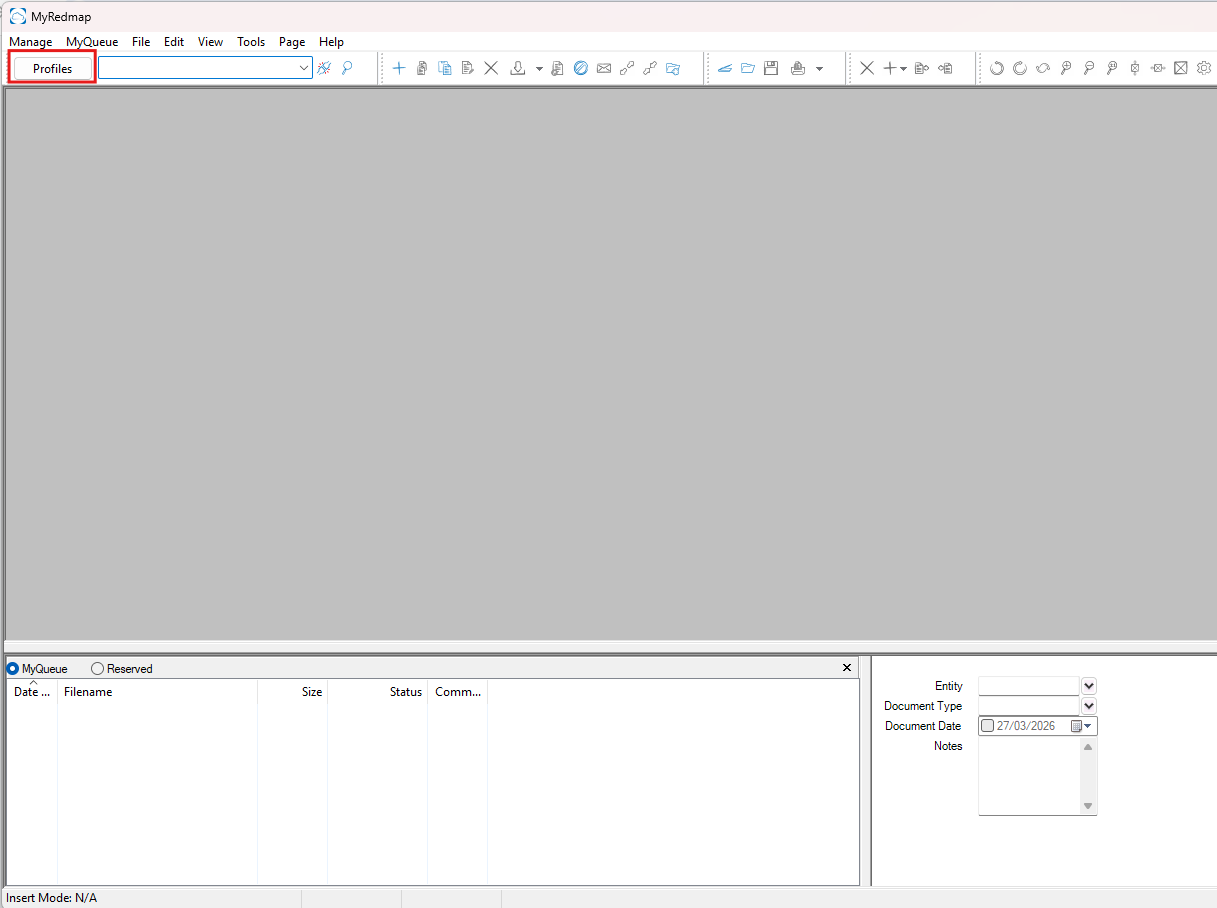
For the profile, you must have access to either Administration or Sales & Services.
Profile list:
Administration (MCT)
Sales & Services (MCT)
CTAdministration (CT)
CTSales & Services (CT)
Input the following:
Profile: Administration
Server: home.smartcloud.com.au/
Username: "Your MCT email"
Password: "Your Redmap password"
*Don't press enter once you put your login details.*
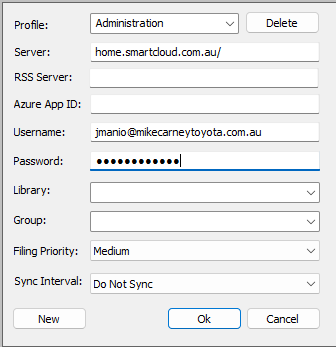
Use the drop-down box to select which library and group. (Ex. Administration (MCT) profile -> Library: MikeCarney | Group: Administration). Then click "Ok" to create the profile.
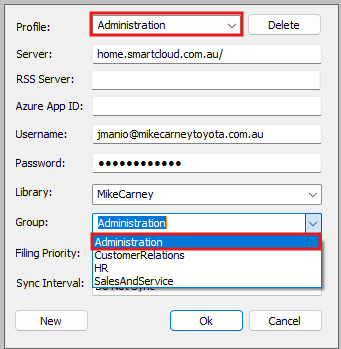
Do all the above steps to configure your desired profile.
The next step is to configure the path where you need to save your scanned file.
1. Create a folder in \\MCT-FPS\redmap
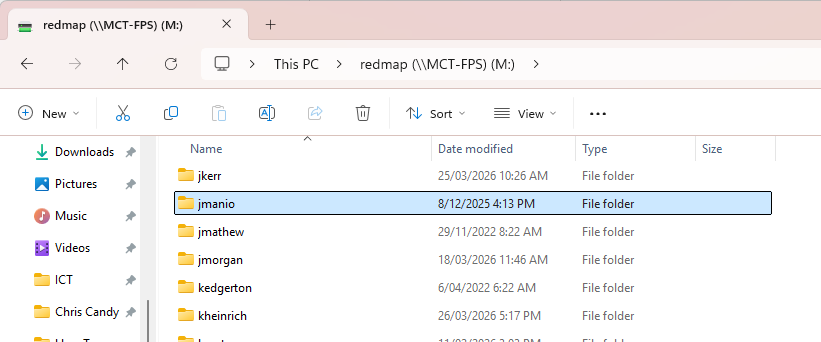
2. You have to map the Redmap drive in your computer. Please follow this guide: Connect to the Shared & Common Drive
Once you mapped it, go back to "MyRedmap" app. MyQueue ->Path Config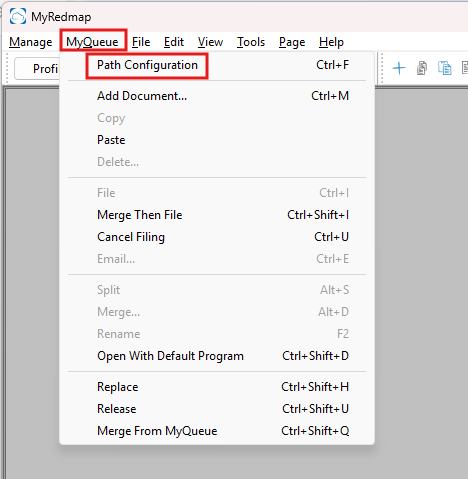
Drop-down option, then look for the folder you have just created. Click "Ok" once you selected it. 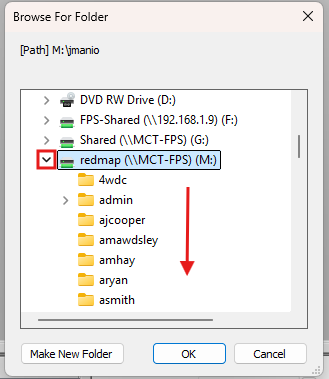
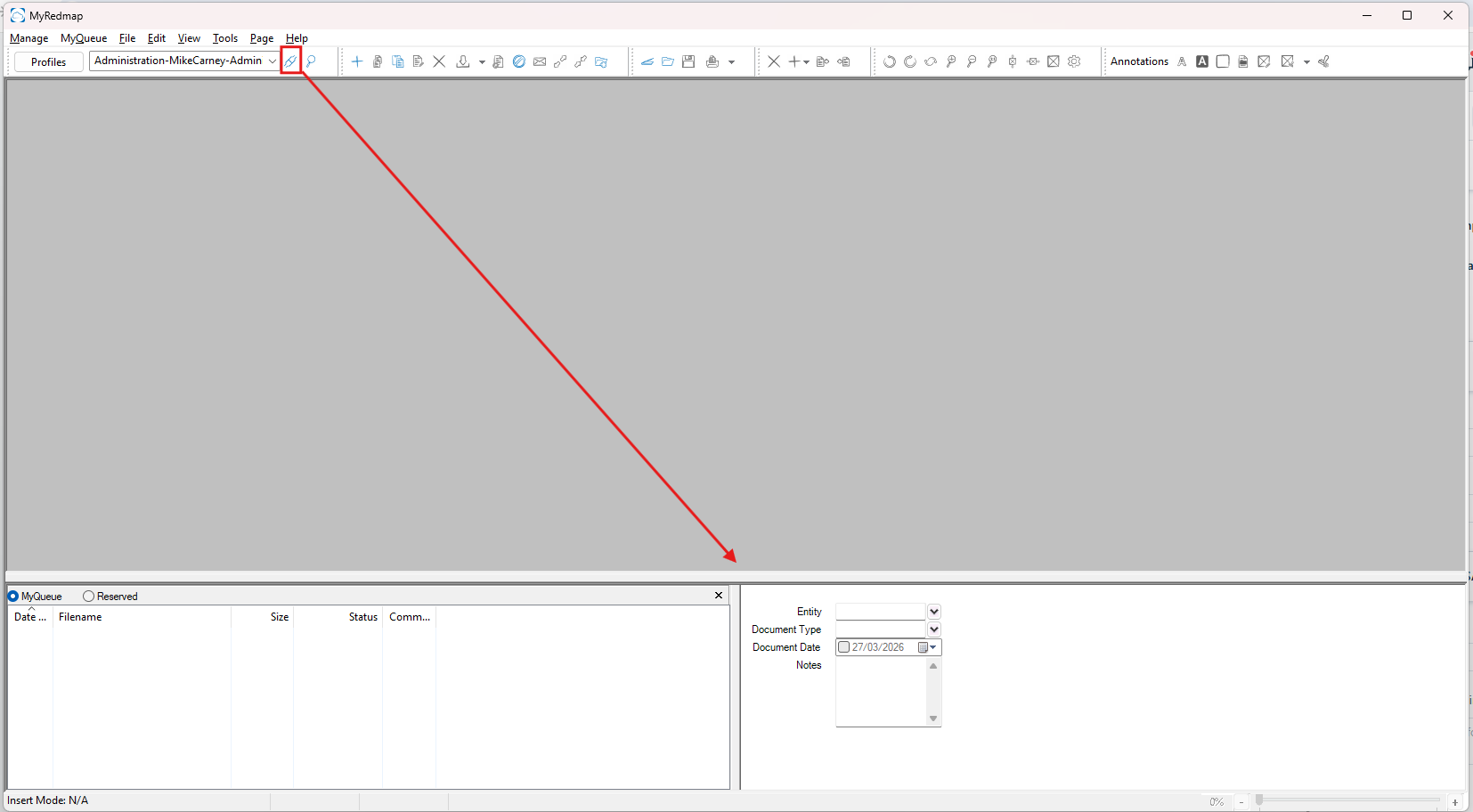
There is a "bone-like" icon you can click and it will show the index option.