
Contact Support:
Support@mikecarneygroup.freshdesk.com
T: 0747594233 – John Manio
| List of Shared Drive | File Path | IP Address |
| G: or Shared Drive | \\MCT-FPS\Shared | 192.168.1.3\Shared |
| P: or Common Drive | \\MCT-FPS\Common | 192.168.1.3\Common |
| M: or Redmap Drive | \\MCT-FPS\redmap | 192.168.1.3\Redmap |
| R: or Rev Drive | \\mct-rev\r | 192.168.1.11\r |
To Connect a computer to the shared & Common drives, do the following
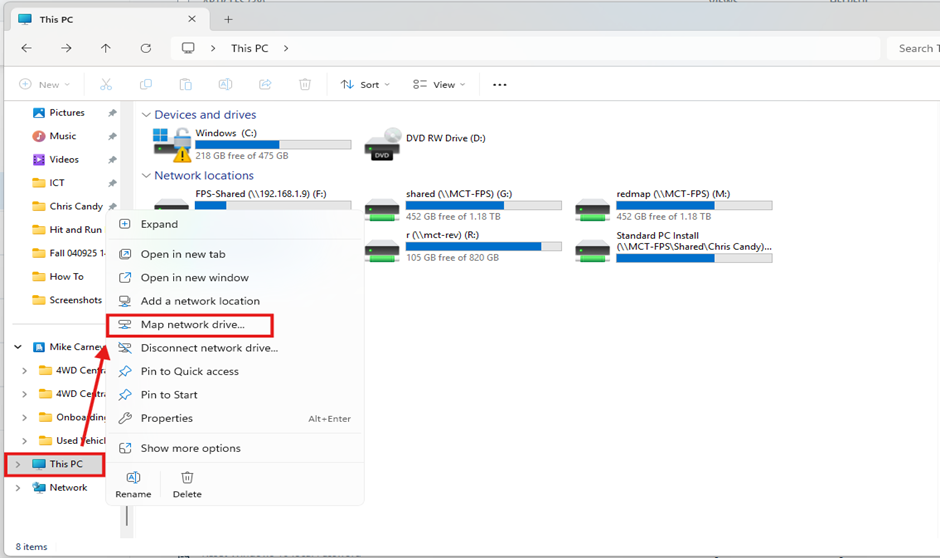
1. Open Windows explorer (Windows Key +E)
2. Right-Click this PC
3. Select map a network drive.
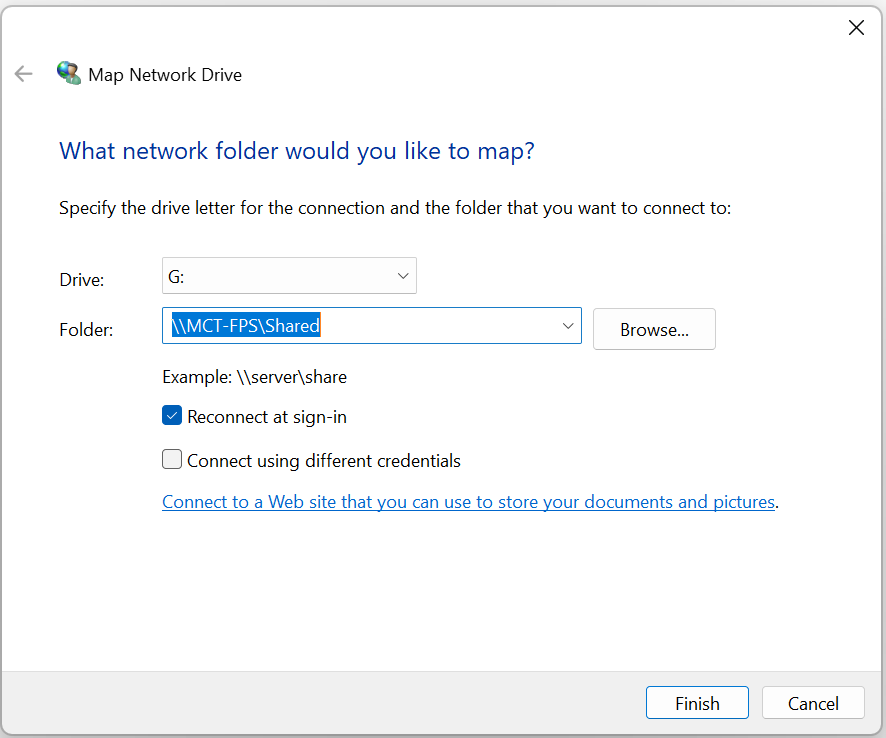
4. Select the letter G then type in this command \\MCT-FPS\Shared / For the Common Drive select P: \\MCT-FPS\Common
5. Click Finish
if you are prompted for username and password, this is your MCT Computer/Domain username and password.
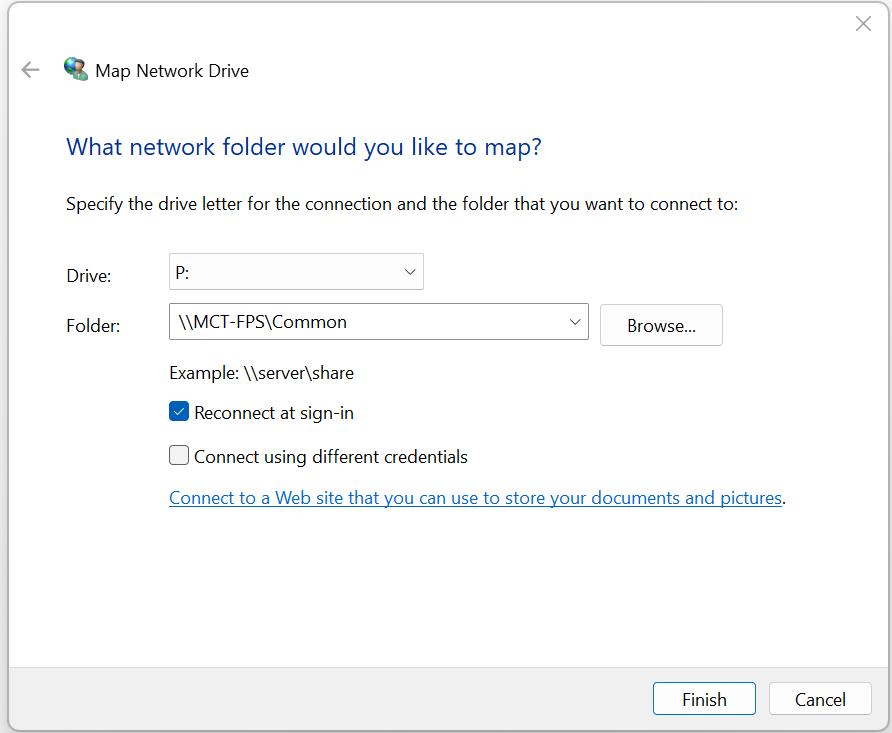
The same process is conducted for the P: Common Drive but with this command \\MCT-FPS\Common.
Common Issues
Can not open Shared Drive while working from home.
This usually occurs because the external network does not recognise “MCT-FPS,” as it is only accessible within the internal network. Additionally, the user’s Active Directory (AD) account cannot communicate with the Domain Controller (DC) when using an external IP address.
FIX
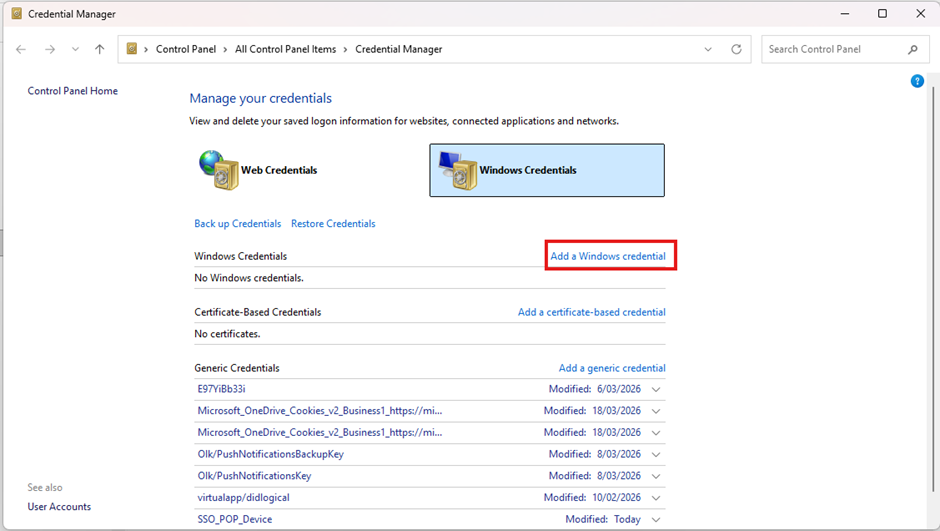
To fix it, make sure to connect to MCT VPN, then go to “Credential Manager
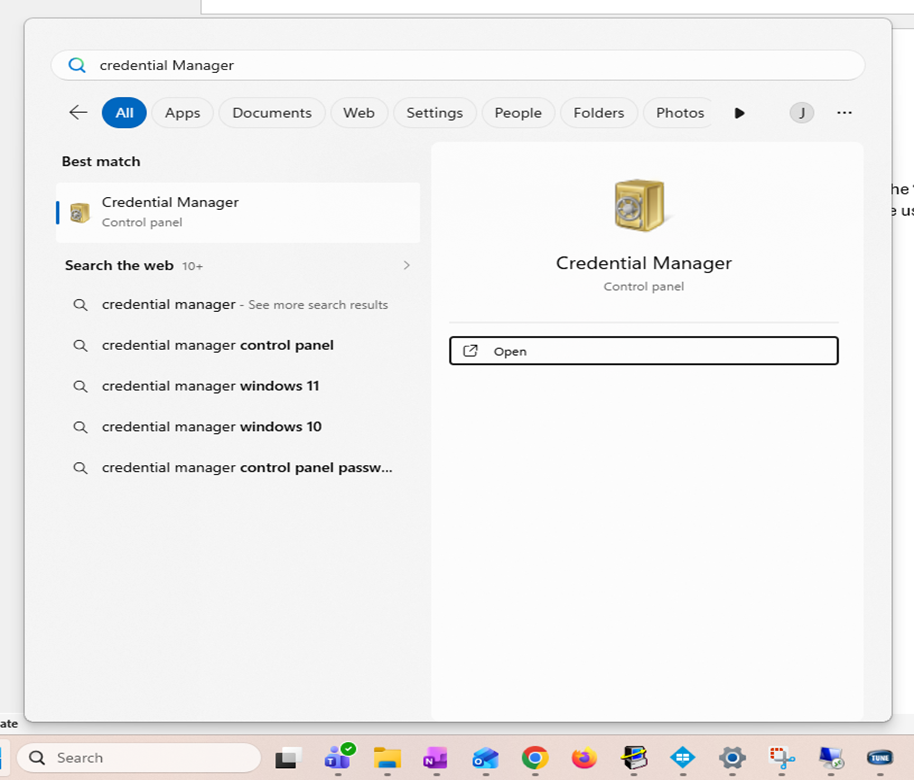
"Add a Windows Credential”
(See above for Shared Drive details)
Internet or network address: 192.168.1.3
Username: mikecarney\username
Password: “Normal computer password”
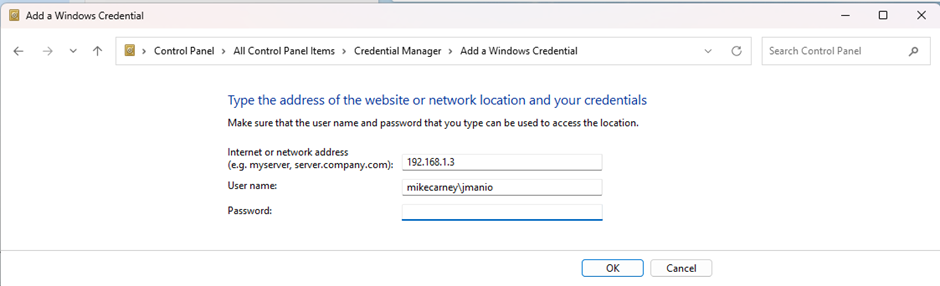
Your account will be added as Windows Credential and it would be use to connect to the Shared drives.